Introducing Cointrol Wallet

Initial Registration and Sign-in Page
The first time you access the wallet, you will need to accept the terms and conditions and then choose one of the available authentication methods.
Please note that this application stores data on your device so if you delete all data and cookies for the site then you will lose access to any existing wallets as well as the assets held within them.
Portfolio
Each time you login, you will land on the portfolio page.
If this is your first time using the wallet, click the create account button to create your wallet. You will be prompted to provide a label for your wallet; this is so you can manage multiple wallets (multiple wallets not available in the free test version).
The share profile button can be used to share your wallet address with other users. You will need to set your display name before you can share your address. Click the set display name button to include your name when you share your portfolio. This button changes to "Edit display name" after the first time a name is saved.

Contacts
Easily add contacts by either adding them manually or using the scan feature to read a QR code. Generate QR codes of any of your contacts to easily share them with anyone else.
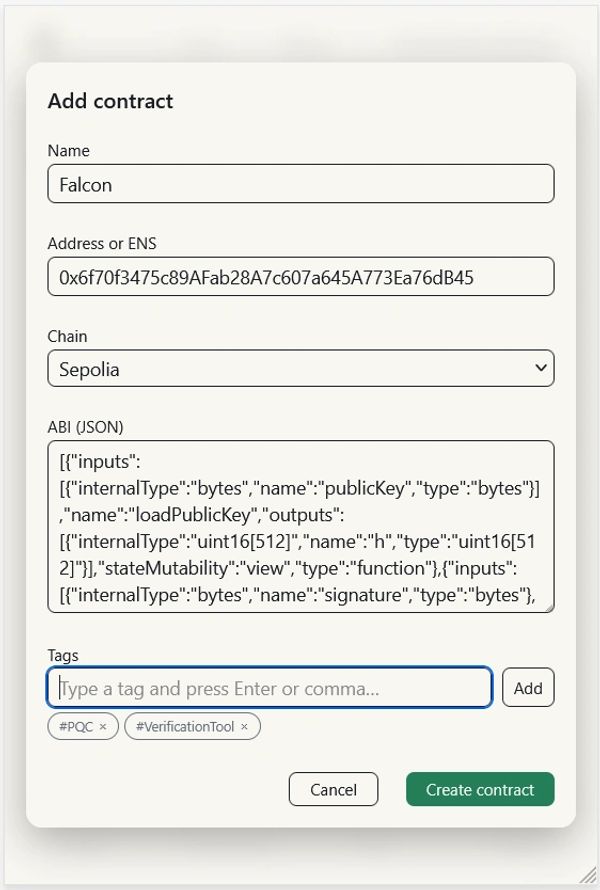
Smart Contracts
Add smart contracts including the ABI (which can be copied from Etherscan or other known sources) and save them to your wallet. Then go to the transactions page to interact with it.
Generate QR codes of smart contracts to easily share with others.

Coin Management
Add coins by selecting the chain, choosing a standard, and then entering an address. The lookup button will call the chain to fetch the name, symbol and decimals values.

Transactions
Sending coins is easy, just click the send coins button and a form will appear that includes selector tools to pick the coin and recipients (recipients can be chosen from the address book or entered manually).
The use a smart contract button will open a form where you can select a contract and then a function. The form will automatically display all fields required for that function. Any address fields will include selector options for contacts and coins.

Address Book
Find all of your contacts and smart contracts in one place with shortcut buttons for using functions like send and approve.